🔎 What This Guide Covers:
This guide helps when your computer won’t start properly—it freezes on the loading screen, shows a spinning circle, or stays blank after turning it on. Often, this is caused by a pending Windows update, power issue, or system hang. It also shows how to manually install updates to prevent future boot issues.
Use this guide when:
- Your PC powers on, but doesn’t fully load Windows.
- You're stuck on the “Getting Windows Ready” or spinning circle screen.
- The screen stays black even though the PC is powered.
- You want to check for or install Windows updates manually.
✅ Steps to Fix the Boot Issue
Step 1: Perform a Full Power Cycle
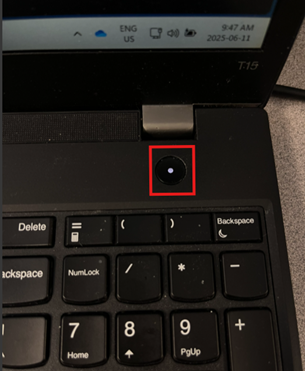
- Hold the Power button down for 10 seconds until the computer shuts off completely.
- Wait 10–15 seconds.
- Turn it on.
Step 2: Wait for the Update to Finish (If Stuck on Update Screen)
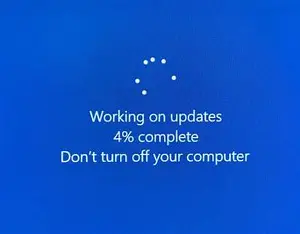
If you see “Getting Windows Ready”, don’t power off immediately.
- Give it 5–10 minutes—Windows might be installing updates in the background.
- If no progress, proceed with the power cycle from Step 1.
🔄 How to Manually Check and Install Windows Updates
After a boot issue, it’s a good idea to check for updates.
Step 4: Go to Windows Update Settings
- Click Start → type and click Check for updates

- Once the Settings screen opens, press Check for updates
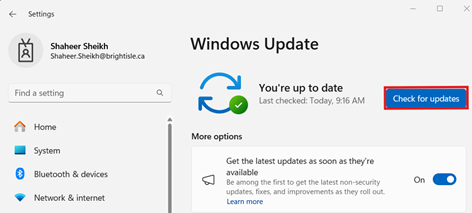
- Let Windows search and install any available updates
- Restart your computer if prompted
Step 5: Keep Your System Healthy
- Turn off your PC only when updates are complete
- Check for updates at least once a week
- Update at the end of the day
If It Still Doesn’t Work:
- Contact IT support through a ticket and let them know:
- What you see on the screen when booting
- If there were any power outages or recent updates
- Steps you’ve already tried from this guide
|
Rate this Topic:
|
|||
|
