🔎 What This Guide Covers:
This guide helps you fix issues when you can’t hear any sound from your computer—whether it’s system sounds, music, or audio during a Microsoft Teams call. It's especially helpful if you’re using Bluetooth headphones but nothing plays, or you're unsure which device is set as the speaker/mic.
Use this guide when:
- You don’t hear anything from your Bluetooth or wired headphones.
- Microsoft Teams says you're connected but no one can hear you (or you can't hear them).
- The wrong device is selected for sound.
✅ Steps to Fix the Issue
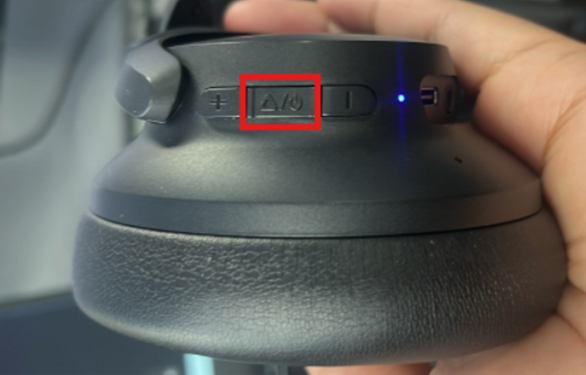
🔊 Step 1: Make Sure Your Headphones Are Powered On
- Press and hold the Power or Bluetooth button on your headphones.
- You should hear a voice prompt or see an LED light flashing.
- If nothing happens, charge the headphones first.
📶 Step 2: Check That Your Headphones Are Connected via Bluetooth
- Go to Settings → Bluetooth & devices

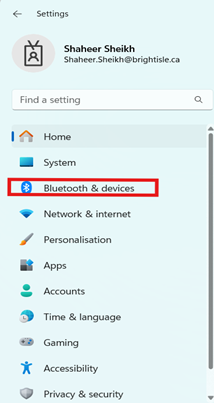
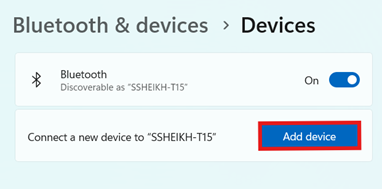
- Ensure Bluetooth is ON

- Look under Audio
- If not connected, click on your headphones and select Connect

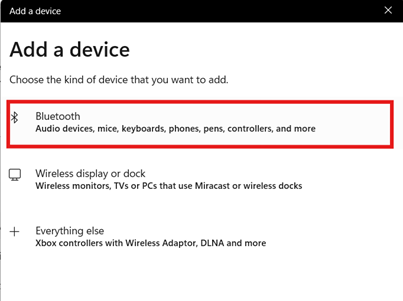
- If not visible, click Add device → Bluetooth → Select your headphones from the list
🔁 Step 3: Set Your Audio Output and Input Device
Sometimes your PC is sending audio to the wrong place.
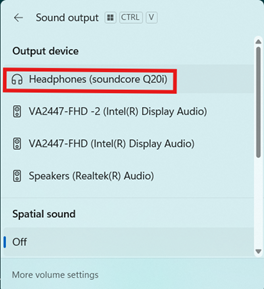
- Click the sound icon on the bottom-right corner of the taskbar

2. Click the drop-down next to the volume slider

- Select your Bluetooth headphones as the Output device
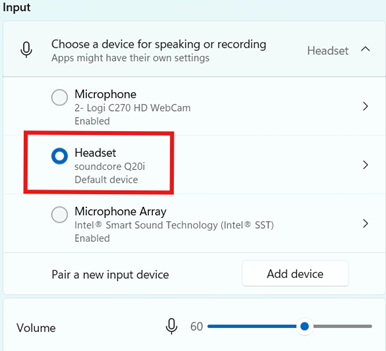
To check input (microphone):
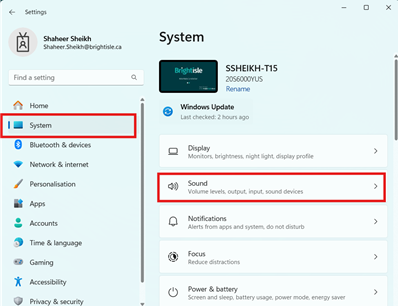
- Go to Settings → System → Sound
- Under Input, make sure your headphones’ mic is selected
💬 Step 4: Check Your Audio Settings in Microsoft Teams
If the issue is in a Teams meeting:
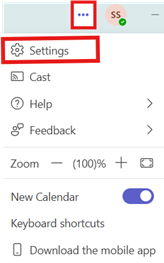
- Open Teams, click the three dots next to your profile photo > Settings
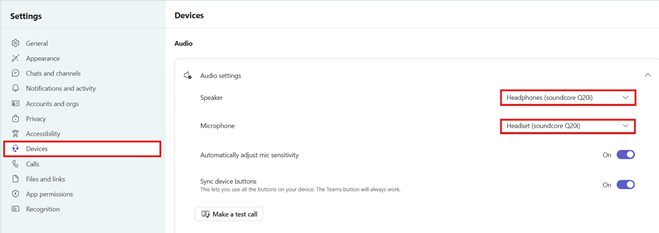
- Go to Devices
- Under Audio devices, ensure:
- Speaker is set to your Bluetooth headphones
- Microphone is also your headphones, if they have a mic
- Click Make a test call to confirm it's working
🔁 Step 5: Restart Audio Services (if sound still doesn’t work)
Sometimes restarting your PC can help reset the audio system.
- Save your work and restart the computer.
- After restart, reconnect your headphones as in Step 2.
📝 If It Still Doesn’t Work:
- Try using another pair of headphones to rule out hardware issues.
- Disconnect and "Forget" the Bluetooth device, then reconnect it.
- Escalate to IT through a ticket with a screenshot of your current sound settings and what you’ve tried.
|
Rate this Topic:
|
|||
|
