🌐 How to Fix: Website Not Loading (Clear Cache & Cookies)
Updated: 10/02/2025
Article #: 473
🔎 What This Guide Covers:
This guide helps when a website (especially an internal one like your company portal) isn’t loading correctly—it’s stuck on a blank screen, showing old information, or won’t log you in. Often, this is caused by corrupted cache or cookies stored in your browser. This guide walks you through clearing them safely.
Use this guide when:
- Your company website is stuck, loading forever, or not updating.
- You're logged out unexpectedly or can't log in.
- The site works on another browser or computer.
✅ Steps to Clear Cache & Cookies
This guide is for Edge, but the steps are similar for Google Chrome and other modern browsers.
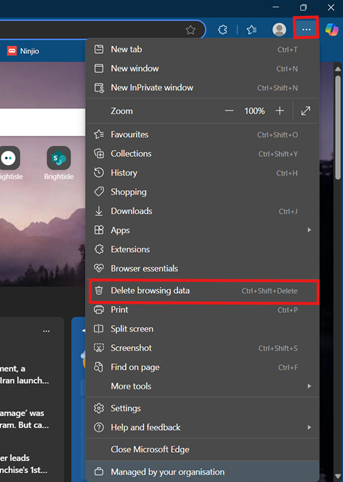
🛠️ Step 1: Open Settings
- Open Microsoft Edge
- Click the three dots (⁝) in the top-right corner
- Choose Delete browsing data from the dropdown
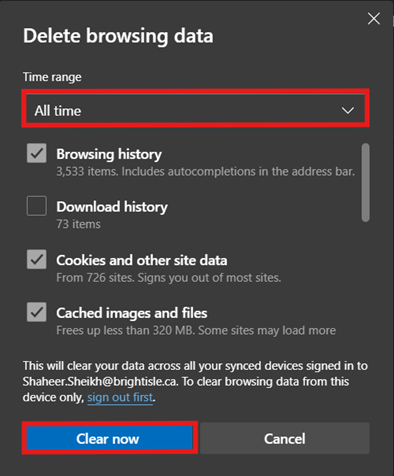
📆 Step 3: Select What to Clear
- Set the Time range to “All time”
- Check the following:
- ✔️ Browsing history
- ✔️ Cookies and other site data
- ✔️ Cached images and files
- Click Clear now
🔁 Step 4: Restart the browser
- Close all Edge windows completely.
- Reopen Edge and try loading the company website again.
📝 If It Still Doesn’t Work:
- Try a different browser like Chrome or Firefox.
- Restart your computer and retry.
- If the issue persists, submit a ticket to IT support and let them know you’ve already cleared the cache and cookies.
|
Rate this Topic:
|
|||
|
